ME21N SAP TCode - Create Purchase Order
Start MEPO SAP screen
What is ME21N (Create Purchase Order) and how is it used? Within an SAP system there are numerous transaction codes (TCode) that each serve different purposes and provide easy access to a variety of different functionality. One such TCode is ME21N, which provides access to Create Purchase Order / Start MEPO SAP screen functionality within R/3 SAP (Or S/4HANA) systems, depending on your version and release level.
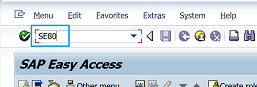
Below for your convenience is a few details about this tcode including any standard documentation. In-order to use this transaction within your SAP system simply enter it into the command input box located in the top left hand corner of the SAP GUI, and press enter. You can also add additional command options such /o to trigger in new window..See full list of
command options available.
Fiori Application based on Tcode ME21N
Manage Purchase Orders F0842 Manage Purchase Orders Centrally F3292 Create Purchase Order Centrally F3486 Manage Workflows for Central Supplier Confirmations F6635 Create Purchase Order, Create Purchase Order - Advanced ME21NHas this tcode replaced or been replaced by a new transaction
In release 755 SAP Transaction Code(t-code) ME21 is replaced by ME21NIn release 755 SAP Transaction Code(t-code) ME24 is replaced by ME21N
In release 755 SAP Transaction Code(t-code) ME25 is replaced by ME21N
In release 755 SAP Transaction Code(t-code) ME27 is replaced by ME21N
In release 46A SAP Transaction Code(t-code) ME21 is replaced by ME21N
See full list of replaced / obsolete t-codes
Program Name: RM_MEPO_GUI
Screen Number: 1000
ME21N Authorisation objects
In-order to be able to use a SAP transaction code you need to have the correct authorisations setup for your user ID. To check if you have the required level of authorisation to run this use tcode SU53 via a new session (i.e. /N). Simply execute ME21N and then execute /NSU53 immediately afterwards. A report of all authorisations checked will then be displayed...See check tcode authorisation for full details and screenshots of how to check what authorisations you are missing to use a tcode.| Object | Field | Value |
| M_BEST_EKO | ACTVT | 01 |
| M_BEST_EKO | EKORG |
SAP GUI Support for tcode ME21N
When a tcode is created you can select which SAP GUI it has support for from HTML, Java and the main Windows GUI you are probably most familiar with.


SAPGUI for HTML
ME21N includes support for the HTML web based GUI. The SAP GUI for HTML generates HTML pages for each screen of the SAP transaction so that it can be executed within a standard web browser. Please note there are technical restrictions and possible incompatibility issues with certain browsers which means some transaction functionality may not function correctly.
SAPGUI for Java
ME21N includes support for the Java based GUI. The SAP GUI for Java support provides more controls than the SAP GUI for HTML, but requires a plug-in to be downloaded and installed on the users PC so is less popular than the SAP GUI for HTML.
SAPGUI for windows
ME21N includes support for the Windows based GUI. Windows(WinGUI) support is the most popular option and transactions can be run under SAP GUI for Windows.
SAP Program associated with transaction ME21N
For further details and documentation see program RM_MEPO_GUIME21N SPRO IMG Menu Path
Logistics->Production->KANBAN->Environment->Purchasing->Purchase Order->Create->Vendor/Supplying Plant Known(ME21N)Logistics->Logistics Execution->JIT Inbound->Environment->Purchasing->Purchase Order->Create->Vendor/Supplying Plant Known(ME21N)
Logistics->Logistics Execution->JIT Outbound->Environment->Purchasing->Purchase Order->Create->Vendor/Supplying Plant Known(ME21N)
Logistics->Sales and Distribution->Foreign Trade/Customs->General Foreign Trade Processing->Environment->Purchase - Import->Purchasing->Purchase Order->Create->Vendor/Supplying Plant Known(ME21N)
Logistics->Materials Management->Foreign Trade/Customs->General Foreign Trade Processing->Environment->Purchase - Import->Purchasing->Purchase Order->Create->Vendor/Supplying Plant Known(ME21N)
Logistics->Materials Management->Purchasing->Purchase Order->Create->Vendor/Supplying Plant Known(ME21N)
Search for further information about these or an SAP related objects