SAP ISU_DEVICE_PARTNER_DATA_GET Function Module for INTERNAL: Read Partner Role Data of Device
ISU_DEVICE_PARTNER_DATA_GET is a standard isu device partner data get SAP function module available within SAP R/3 or S/4 Hana systems, depending on your version and release level. It is used for INTERNAL: Read Partner Role Data of Device processing and below is the pattern details for this FM, showing its interface including any import and export parameters, exceptions etc. there is also a full "cut and paste" ABAP pattern code example, along with implementation ABAP coding, documentation and contribution comments specific to this or related objects.
See here to view full function module documentation and code listing for isu device partner data get FM, simply by entering the name ISU_DEVICE_PARTNER_DATA_GET into the relevant SAP transaction such as SE37 or SE38.
Function Group: E10RPARTDEV
Program Name: SAPLE10RPARTDEV
Main Program: SAPLE10RPARTDEV
Appliation area: E
Release date: N/A
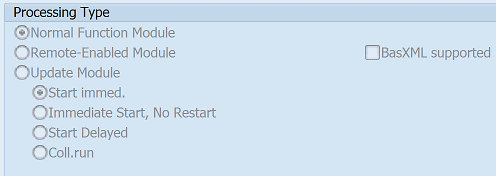
Mode(Normal, Remote etc): Normal Function Module
Update:
Function ISU_DEVICE_PARTNER_DATA_GET pattern details
In-order to call this FM within your sap programs, simply using the below ABAP pattern details to trigger the function call...or see the full ABAP code listing at the end of this article. You can simply cut and paste this code into your ABAP progrom as it is, including variable declarations.CALL FUNCTION 'ISU_DEVICE_PARTNER_DATA_GET'"INTERNAL: Read Partner Role Data of Device.
EXPORTING
X_EQUNR = "
CHANGING
* XY_EQUI = "
TABLES
* T_PARTNER_DATA = "Partner data of device
EXCEPTIONS
EQUI_NOT_FOUND = 1
IMPORTING Parameters details for ISU_DEVICE_PARTNER_DATA_GET
X_EQUNR -
Data type: EQUI-EQUNROptional: No
Call by Reference: No ( called with pass by value option)
CHANGING Parameters details for ISU_DEVICE_PARTNER_DATA_GET
XY_EQUI -
Data type: EQUIOptional: Yes
Call by Reference: No ( called with pass by value option)
TABLES Parameters details for ISU_DEVICE_PARTNER_DATA_GET
T_PARTNER_DATA - Partner data of device
Data type: EDEVICE_PARTNER_DATAOptional: Yes
Call by Reference: No ( called with pass by value option)
EXCEPTIONS details
EQUI_NOT_FOUND -
Data type:Optional: No
Call by Reference: No ( called with pass by value option)
Copy and paste ABAP code example for ISU_DEVICE_PARTNER_DATA_GET Function Module
The ABAP code below is a full code listing to execute function module POPUP_TO_CONFIRM including all data declarations. The code uses the original data declarations rather than the latest in-line data DECLARATION SYNTAX but I have included an ABAP code snippet at the end to show how declarations would look using the newer method of declaring data variables on the fly. This will allow you to compare and fully understand the new inline method. Please note some of the newer syntax such as the @DATA is not available until a later 4.70 service pack (SP8), which i why i have stuck to the origianl for this example.| DATA: | ||||
| lv_xy_equi | TYPE EQUI, " | |||
| lv_x_equnr | TYPE EQUI-EQUNR, " | |||
| lv_equi_not_found | TYPE EQUI, " | |||
| lt_t_partner_data | TYPE STANDARD TABLE OF EDEVICE_PARTNER_DATA. " |
| CALL FUNCTION 'ISU_DEVICE_PARTNER_DATA_GET' "INTERNAL: Read Partner Role Data of Device |
| EXPORTING | ||
| X_EQUNR | = lv_x_equnr | |
| CHANGING | ||
| XY_EQUI | = lv_xy_equi | |
| TABLES | ||
| T_PARTNER_DATA | = lt_t_partner_data | |
| EXCEPTIONS | ||
| EQUI_NOT_FOUND = 1 | ||
| . " ISU_DEVICE_PARTNER_DATA_GET | ||
ABAP code using 7.40 inline data declarations to call FM ISU_DEVICE_PARTNER_DATA_GET
The below ABAP code uses the newer in-line data declarations. This allows you to see the coding differences/benefits of the later inline syntax. Please note some of the newer syntax below, such as the @DATA is not available until 4.70 EHP 8.| "SELECT single EQUNR FROM EQUI INTO @DATA(ld_x_equnr). | ||||
Search for further information about these or an SAP related objects